Picture a Friday lesson where the school Wi-Fi flickers out mid-class. A tutorial reel you planned around vanishes. A Facebook downloader fixes that small panic.
Many educators rely on public Facebook clips for short, vivid teaching moments. Saving those clips ahead of time keeps lessons steady when the network is not.
This guide walks through how fGet handles that task, what file types it produces, and how it compares to other tools you might have tried before.
What fGet does and how it works as a Facebook downloader
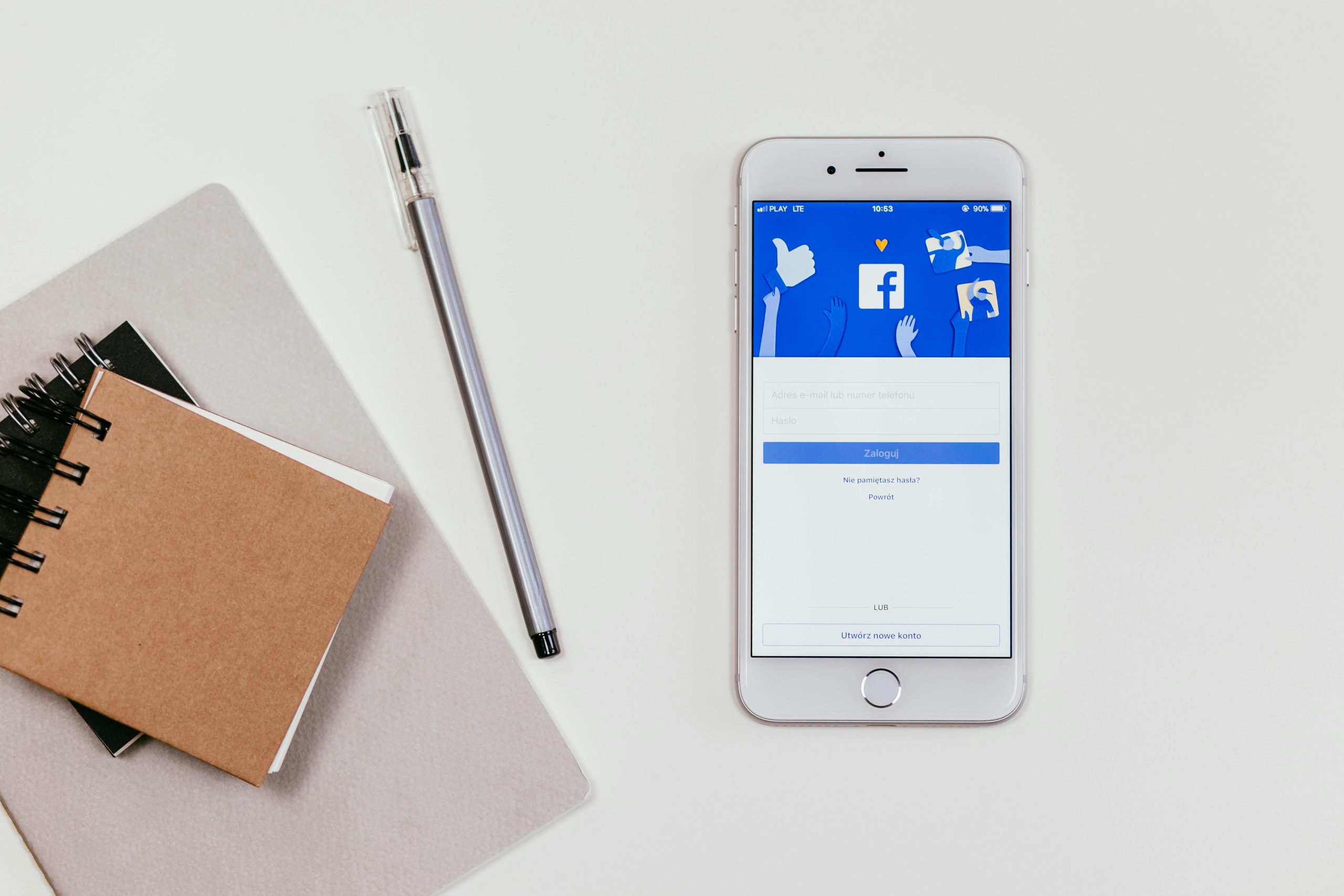
fGet is a web-based tool that grabs public Facebook media through your browser. It supports videos, reels, stories, photos, and audio in common formats.
The workflow follows the same short path every time, on any modern browser, with no registration required and no software installation on the device.
- Open the Facebook post and copy the video URL from the share menu or address bar onto your clipboard.
- Visit fget.io in your browser on PC, tablet, Android, or iPhone, and paste the link into the input field.
- Pick the output format you want, then click the download button to save the file locally.
Output options include MP4 for video, MP3 for audio extraction, image files for photos, and HD resolution when the source clip supports it.
How fGet compares to other Facebook download tools
Several services advertise an fb downloader, but their feature sets differ widely. The table below maps the practical differences that matter to a teacher in a hurry.
| Criterion | fGet | Typical browser extensions | Typical installable apps |
| Setup time | None, opens in browser | Extension install plus permissions | Full app install and updates |
| Account requirement | No registration, no account | Often optional sign-in | Frequently mandatory sign-up |
| Format range | MP4, MP3, images, GIFs | Mostly MP4 only | Varies by paid tier |
| Device coverage | Desktop, laptop, tablet, mobile | Desktop browsers only | One operating system at a time |
| Data collection | No stored user data | Permissions vary | Account history common |
For a teacher juggling a phone, a tablet, and a classroom PC, a single browser tool removes friction that extensions and installers tend to add on each device.
Why offline saving helps in real classrooms
Lesson plans built around online clips face a familiar risk. Posts get deleted, accounts go private, and platform purges remove inactive profiles without warning at any moment.
Saving a public tutorial reel in advance with fGet means the lesson runs even when the source post disappears the night before class begins.
Offline viewing also helps in schools with weak bandwidth. A locally stored MP4 plays smoothly on a projector while streaming the same clip might stutter or buffer repeatedly.
Stories, reels, and live broadcasts
The stories downloader handles the short, time-limited clips that vanish after a day. Teachers can keep brief field updates from museums, libraries, or guest speakers before they expire.
The newer live broadcast feature captures public Facebook live sessions, which is useful for guest lectures or community events that run only once and are not re-uploaded.
Practical tips for smoother Facebook video download sessions
A few small habits keep the process fast. Copy the link directly from the post’s three-dot menu rather than the browser tab, which avoids tracking parameters.
Pick HD resolution only when the projector or screen warrants it. Lower file size means quicker downloads on classroom Wi-Fi and easier transfer between a phone and a laptop.
For audio-only needs like a recorded interview or a music clip, choose MP3. The smaller file plays on any device without a video player and stores neatly in a class folder.
Visit fGet from any browser before the lesson, queue the saves in advance, and your offline library is ready when the bell rings on Monday morning.
Photo by freestocks.org from Pexels (Free for Commercial use)
Image Published on December 18th, 2017